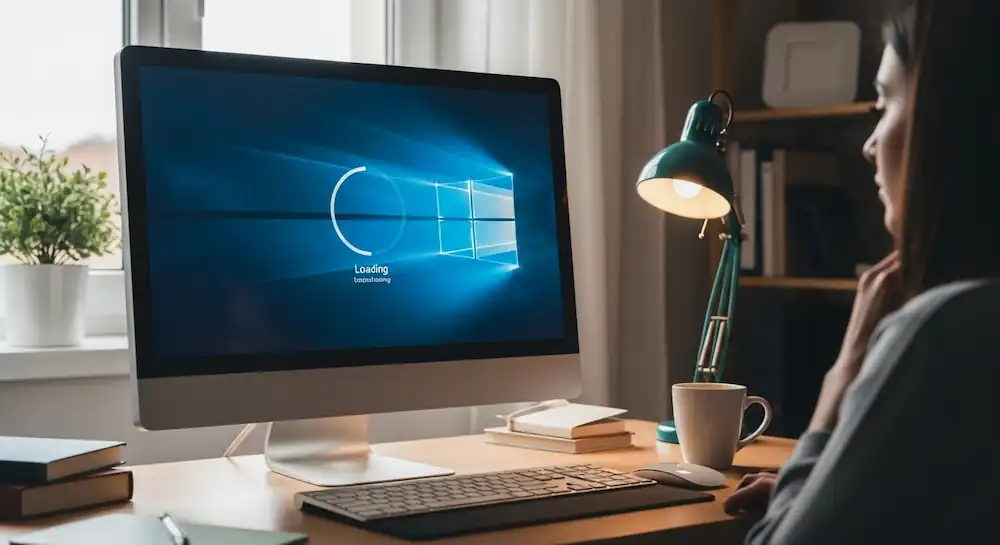
Ever turn on your PC and feel like you could make a coffee, check your phone, and still end up on a loading screen? A slow Windows startup is one of the most annoying tech problems, and it can kill your mood before you even get started.
The good news? You don’t need a new computer or expensive upgrades to fix it. Most slow boot issues are caused by simple software settings and background programs that are easy to clean up and doing so can save you minutes every day.
In this guide, I’ll walk you through easy, beginner-friendly fixes as well as a few advanced tweaks to help your Windows 10 or 11 PC start faster, run smoother, and feel brand new again.
Why Is Your Windows PC Starting So Slowly?
Before fixing anything, it helps to know what’s actually slowing your PC down. Below are the most common reasons that many users face:
- Apps that open automatically when Windows starts eat up RAM and CPU, dragging out boot time.
- Drivers help your hardware talk to Windows. Old or faulty ones can cause errors and slow startup.
- Hidden background threats can use system resources and interfere with booting.
- HDDs slow down when files are scattered and both HDDs and SSDs struggle when storage is almost full.
- Corrupt files, failed updates, or bad settings can delay startup or even cause boot issues.
- Low RAM, old CPUs, or failing hard drives directly impact how fast your PC starts.
- This feature usually helps, but sometimes it causes driver or update conflicts that slow down booting.
System slowdowns and startup issues can sometimes result in accidental data loss, making file recovery an important step when optimizing overall system performance.
Find What’s Slowing Your PC Down
Before jumping into fixes, it’s smart to figure out what’s actually causing your slow startup. This saves time and keeps you from changing things you don’t need to.
Check Startup Apps Using Task Manager
This is the easiest place to start. To check it, follow these steps.
- Press Ctrl + Shift + Esc to open Task Manager.
- Click the Startup tab.
- Look at the Startup impact column.
If you see apps marked High that you don’t use right away, disable them. Don’t just disable junk apps, uninstall the ones you never use. Many sneak into a startup without asking.
Check Startup Errors Using Event Viewer
Windows keeps a log of problems that happen during startup. To do so:
- Search for Event Viewer and open it.
- Go to: Applications and Services Logs > Microsoft > Windows > Diagnostics-Performance > Operational
- Look for events labeled Boot performance monitoring.
This helps you spot hidden errors slowing things down.
Monitor System Usage with Resource Monitor
If your computer feels sluggish right after turning on, there’s a good chance something in the background is using too much of your system’s power. To check this, search for Resource Monitor in the Start menu and open it.
Once your PC finishes booting, keep an eye on the CPU, Disk, Memory, and Network tabs. If you notice any app or process using unusually high resources, that could be the reason your system is slow, and it’s worth investigating further.
Windows startup can also be affected by cloud sync and backup services, which often rely on users to sign up for a Gmail account to manage data and settings across devices.
Quick & Easy Fixes (Beginner-Friendly)
These simple fixes are safe, fast, and often make a big difference right away, even if you’re not tech-savvy.
1. Disable Unnecessary Startup Programs
Many apps quietly start when Windows boots and most of them aren’t needed right away.
How to do it:
- Press Ctrl + Shift + Esc to open Task Manager.
- Click the Startup tab.
- Right-click any app marked High impact that you don’t need immediately and choose Disable.
If your browser opens with tons of tabs and extensions, consider stopping it from launching at startup too.
2. Run Disk Cleanup
Over time, Windows collects temporary files that take up space and slow things down.
How to do it:
- Search for Disk Cleanup and open it.
- Select your main drive (usually C:).
- Check boxes like Temporary files, Recycle Bin, and Windows Update Cleanup.
- Click OK to delete them.
3. Update Windows
Windows updates often include performance improvements and bug fixes that can speed up startup.
How to do it:
- Go to Settings > Windows Update.
- Click Check for updates.
- Install any available updates and restart your PC.
4. Run a Full Malware Scan
Viruses and hidden programs can seriously slow down your system. To run a malware scan:
- Open Windows Security.
- Click Virus & threat protection.
- Select Scan options → Full scan → Scan now.
5. Restart Your PC Regularly
If you rarely restart your computer, background processes can pile up, slowing things down. A simple restart clears memory, fixes small glitches, and helps Windows run more smoothly. Try restarting at least once a week.
6. Uninstall Programs You Don’t Use
Unused software still takes up space and sometimes runs in the background. To do so: Go to Settings > Apps > Installed apps. Remove anything you no longer need.
Besides all, when your drive is almost full, Windows slows down, especially during startup. Therefore, it’s good to keep at least 15–20% free space on your main drive for best performance.
In-Depth Troubleshooting (Intermediate)
If the quick fixes didn’t fully solve your slow startup, try these next. They take a little more effort but can fix deeper issues.
1. Do a Clean Boot
This starts Windows with only essential services, so you can find out if another app is slowing things down. To perform a clean boot:
- Press Windows + R, type msconfig, and hit Enter.
- Go to the Services tab, check Hide all Microsoft services, then click Disable all.
- Open the Startup tab → Task Manager, and disable all startup apps.
- Restart your PC.
2. Update Your Device Drivers
Old or broken drivers can seriously slow down startup. Therefore, you should update your device drivers when needed. To check so, search for Device Manager. Then expand categories such as Display adapters or Network adapters. Next, right-click a device and select Update driver. Use Windows Update first. For graphics cards, go directly to the websites of NVIDIA, AMD, or Intel.
Background services that depend on a stable internet connection can delay Windows startup, especially when network issues interrupt loading processes.
3. Turn Off Fast Startup
Fast Startup is meant to help boot faster, but sometimes it causes problems instead.
How to do it:
- Go to Power & sleep settings → Additional power settings.
- Click Choose what the power buttons do → Change settings that are currently unavailable.
- Uncheck Turn on fast startup and save.
Restart your PC and see if boot time improves.
4. Check Your Disk for Errors
Disk errors can significantly slow Windows startup. Your disk needs to be checked for errors. For that, open Command Prompt as administrator. Then type: chkdsk /f /r and press Enter. Now, press Y, then restart your PC. This scan can take a while, so don’t interrupt it.
Advanced Fixes & System Optimization (Expert Level)
These are for stubborn cases. Follow carefully and always back up your data first.
1. Clean Your Registry Carefully
Over time, the Windows registry can collect broken entries that slightly slow things down. Use a trusted tool like CCleaner, but always create a restore point before making changes. This isn’t a magic fix, just a small optimization.
2. Manage Hidden Startup Items with Autoruns
Windows has many hidden startup locations that Task Manager doesn’t show. For that:
- Download Autoruns for Windows from Microsoft.
- Run it as administrator.
- Review tabs like Logon, Services, and Scheduled Tasks.
- Disable only entries you fully recognize.
3. Reinstall Windows (Last Resort)
If nothing works and your PC is painfully slow, a fresh Windows install can fix almost everything. Before you do this:
- Back up all important files.
- Create a Windows install USB.
- Follow the on-screen setup steps.
This wipes your system drive, so use it only if you’re sure.
4. Upgrade to an SSD (Best Performance Boost)
If your PC still uses a traditional hard drive (HDD), switching to an SSD will dramatically improve startup speed, often cutting boot time from minutes to seconds.
This is the single biggest upgrade you can make for both boot speed and overall system performance.
Frequently Asked Questions (FAQs)
1. Will adding more RAM make my PC start faster?
More RAM helps your computer run more smoothly when you have lots of apps open, but it doesn’t speed up startup much. For faster boot times, upgrading to an SSD makes the biggest difference.
2. Is it safe to disable all startup programs?
Most third-party apps are safe to disable. Just avoid turning off system processes or security software. If you’re unsure about a program, look it up first.
3. How often should I defragment my hard drive?
Windows automatically defragments traditional hard drives (HDDs). If you’re using an SSD, you don’t need to defrag it; Windows optimizes it in a safer, more efficient way.
4. Does Fast Startup really help?
Usually, yes. But sometimes it can cause driver or update issues. If your PC has boot problems, turning it off is a good troubleshooting step.
5. Should I use third-party driver update tools?
It’s best to avoid them. Stick with Windows Update or download drivers directly from the hardware manufacturer to stay safe and avoid incorrect drivers.