Phone Link (formerly called “Your Phone”) is Microsoft’s official app that lets you connect your Android phone to your Windows PC, letting you see and manage your messages, calls, photos and apps right from your computer. You no longer have to be jealous of your iPhone friends answering messages from multiple devices.
What You’ll Need Before Starting
Before you begin, make sure you have:
- A Windows 10 or Windows 11 PC (Phone Link comes preinstalled on most Windows 11 systems)
- An Android phone running Android 7.0 or later (Android 10+ recommended for best performance)
- A Microsoft account on both your PC and phone
- Both devices on the same Wi-Fi network (or you can enable mobile data after setup)
- Bluetooth enabled on your PC (for calling features)
Step-by-Step Setup Guide
Step 1: Make Sure Your PC Has Phone Link Installed
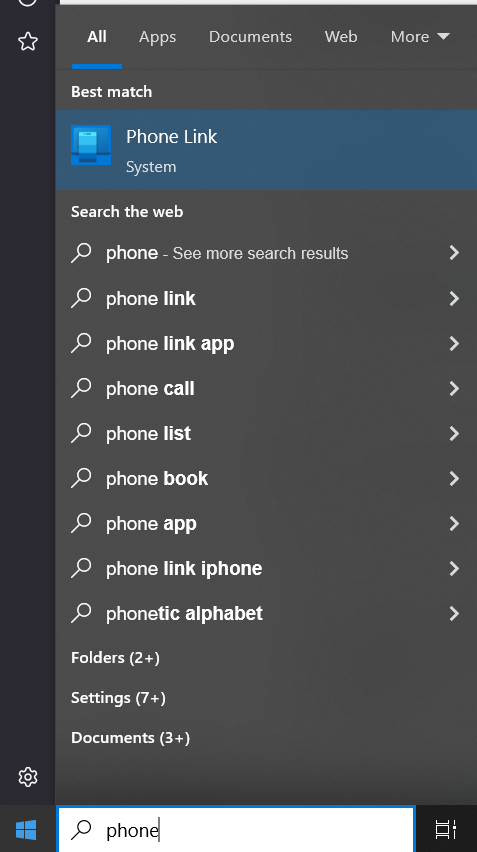
On your Windows PC:
- Click the Start menu and search for “Phone Link”
- If it appears, great! Open it
- If you don’t see it, go to the Microsoft Store and search for “Phone Link,” then click Install
Most Windows 11 PCs have Phone Link pre-installed, so you likely won’t need to download it.
Step 2: Download the “Link to Windows” App on Your Android Phone
On your Android phone:
- Open the Google Play Store
- Search for “Link to Windows” (it’s made by Microsoft)
- Tap Install
- Wait for it to download and install completely
Some newer Samsung, Microsoft Duo and HONOR phones have this app built-in already, so check your apps first before downloading.
Step 3: Sign In with Your Microsoft Account on Both Devices
On your PC:
- Make sure you’re signed into your Microsoft account
- Go to Start > Settings > Accounts > Your info
- If you’re not signed in with a Microsoft account, select Sign in with a Microsoft account instead and follow the prompts
On your Android phone:
- Open Settings
- Tap Accounts (or Accounts and sync depending on your phone)
- Make sure you’re signed in with the same Microsoft account you use on your PC
Step 4: Open Phone Link on Your PC and Start Pairing
On your Windows PC:
- Open the Phone Link app
- Select Android (you’ll see options for both Android and iPhone)
- Sign in with your Microsoft account if prompted
- You’ll see a QR code displayed on your screen
Step 5: Scan the QR Code from Your Phone
On your Android phone:
- Open the Link to Windows app (the one you just downloaded)
- Tap the + button or Add a device
- Point your phone’s camera at the QR code on your PC screen
- The app will automatically scan it
- Tap Continue
Step 6: Enter the Verification Code
On your PC:
- A verification code will appear on your screen (usually 6 digits)
On your Android phone:
- You’ll be prompted to enter the code from your PC
- Type in the 6-digit code
- Tap Next
- Tap Continue
Step 7: Sign In with Your Outlook/Microsoft Password
On your Android phone:
- You’ll be asked to enter your Outlook password (the password for your Microsoft account)
- Type it in carefully
- Tap Next
Step 8: Grant Permissions
On your Android phone:
You’ll see several permission requests. These are important, tap “Allow” or “Continue” for:
- Notifications (so your PC can see your messages and alerts)
- Photos and media (to access your photos from your PC)
- Contacts (to sync your contact information)
- Messages (to read and reply to texts from your PC)
- Calls (to make and receive calls from your PC)
On your PC:
You may also be asked to allow permissions. Click Yes or Allow when prompted.
Step 9: Complete the Setup
On your Android phone:
- Once all permissions are granted, tap Done
- You’re now connected!
What You Can Do Now
Once your devices are linked, you can:
| Feature | What It Does |
|---|---|
| Read and reply to text messages | See all your SMS messages on your PC and respond without touching your phone |
| Make and receive calls | Answer calls from your PC using your phone’s number (requires Bluetooth) |
| View notifications | See alerts from your phone apps right on your PC |
| Access your photos | View and download photos from your phone directly on your PC |
| Run your favorite apps | Open and use your Android apps on your PC screen (on compatible phones like Samsung Galaxy) |
| Drag and drop files | Transfer files between your phone and PC by dragging them (on compatible phones) |
| Copy and paste | Copy text or images on your phone and paste them on your PC, and vice versa |
| Use Instant Hotspot | Connect to your phone’s mobile hotspot from your PC’s Wi-Fi menu without entering a password each time |
Troubleshooting Tips
Connection keeps dropping?
- Make sure both devices are on the same Wi-Fi network
- Keep Bluetooth enabled on your PC
- Check that your Wi-Fi and Bluetooth aren’t turning off automatically (go to Settings and disable sleep mode for these devices)
- Try refreshing the Phone Link app by clicking the refresh button in the widget
Not receiving notifications?
- On your Android phone, go to Settings > Apps > Link to Windows > Notifications and make sure notifications are toggled on
- Make sure the Link to Windows app has permission to send notifications
Can’t scan the QR code?
- Make sure you’re in a well-lit area
- Try moving your phone closer to the screen
- If it still doesn’t work, look for a “Can’t scan?” option and manually enter the code instead
Phone won’t connect after setup?
- Restart both devices
- Make sure you’re signed into the same Microsoft account on both devices
- Check that your Wi-Fi connection is stable
- Try unlinking and relinking your devices (go to Phone Link settings and select “Unlink device”)
A Few Things to Keep in Mind
- You need to be on the same Wi-Fi network for most features to work, though you can enable mobile data as a backup (this may use data charges)
- Some features require compatible phones: App mirroring and drag-and-drop work best on Samsung Galaxy phones, Microsoft Duo, and HONOR devices
- Your Microsoft account is the key: Both devices must be signed in with the same Microsoft account for everything to sync properly
- The app works in the background: You don’t need to keep Phone Link open on your PC for notifications and messages to come through, but it needs to be running for app mirroring