Nothing kills your mood faster than your internet cutting out right when you need it most. Whether you’re on a work call, streaming a show, or gaming online, a dropped connection is instantly frustrating.
You’re not the only one who faces this issue; many users encounter it. And the good news is that you don’t need to be a tech expert to fix it. I’ll explain everything in clear and simple steps so you can find the problem and get back online fast.
By the end, you’ll know how to fix connection drops, improve your Wi-Fi and keep your internet running smoothly without constant restarts or frustration.
Understanding Why Your Wi-Fi Keeps Dropping
Before fixing anything, it helps to know where the problem is coming from. Most connection drops fall into two categories:
- Wi-Fi problem: Your device can’t connect properly to your router.
- Internet problem: Your router is fine, but your internet service isn’t working.
If other devices connect to Wi-Fi but can’t open websites, it’s likely your internet service. If only one device is struggling, the issue is probably local to that device.
Wi-Fi drops often occur due to factors in your home. Thick walls, floors, furniture, and even appliances like microwaves or cordless phones can weaken signals. Nearby Wi-Fi networks can also interfere, especially in apartments or crowded areas.
Another common reason is that too many devices are using the network at once. Phones, TVs, laptops, smart speakers, and cameras all compete for bandwidth, which can cause slow speeds and random disconnects. Old routers or modems can also struggle to keep up with modern internet demands.
Sometimes the problem is with your device instead. Outdated network drivers, faulty Wi-Fi adapters, VPNs, or software bugs can interrupt your connection without warning.
Finally, your internet provider may be the issue. Local outages, damaged service lines, or scheduled maintenance can cause your internet to drop even when your Wi-Fi looks fine. Weak Wi-Fi security can also allow others to connect to your network and drain your bandwidth.
Once you understand what’s behind the drops, fixing them becomes much easier.
The First Steps to Take for Initial Quick Fixes
Before diving into complicated settings, start with these easy wins. You’d be surprised how often they solve the problem in minutes.
First, restart your modem and router. This clears small glitches and refreshes your connection to your internet provider.
The right way to do it:
- Unplug both the modem and router
- Wait about 30 to 60 seconds
- Plug the modem back in and wait until the lights settle
- Plug the router back in and wait again
This works because it resets temporary errors and renews your network connection.
Next, check your cables and power. Make sure Ethernet cables are pushed in tightly and your modem and router lights are on and steady. Loose or damaged cables can cause random drops, even if Wi-Fi looks fine.
Then, reset the connection on your device. Turn Wi-Fi off and back on. If that doesn’t help, forget the network and reconnect using the password. Also, try another device to see if the problem is specific to one device or affects your whole network.
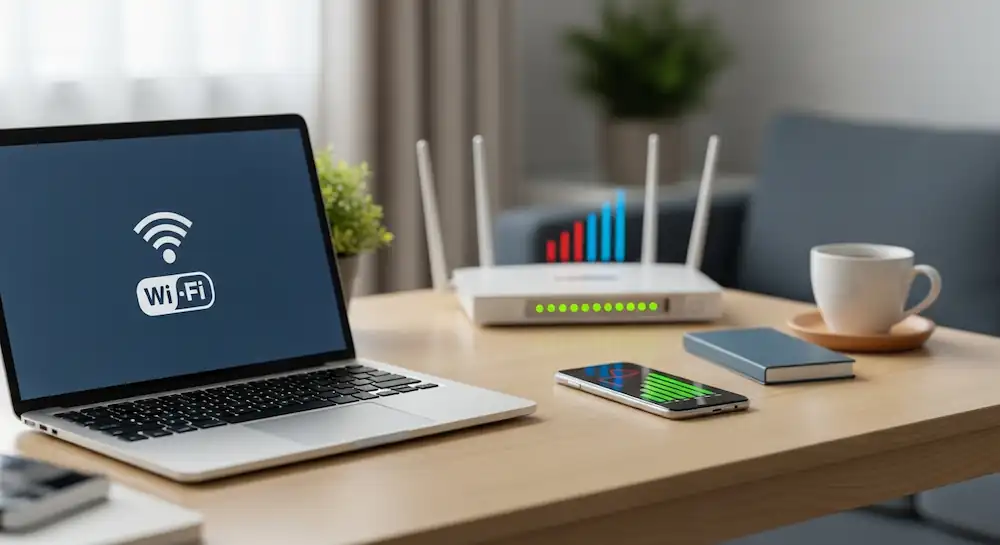
Finally, take a look at where your router is placed. Routers work best in open, central spots, not stuffed behind TVs or hidden in cabinets. Raising it off the floor and keeping it away from thick walls and electronics can instantly improve signal strength and stability.
When It’s Time to Contact Support
If the problem keeps coming back or nothing seems to work, it’s probably time to reach out to your internet provider or a technician.
Before you do, gather this info:
- Your ISP account details
- The model numbers of your modem and router
- A clear description of what’s happening and how often
- A list of what you’ve already tried
Write things down as you troubleshoot. Knowing when the problem happens and what fixes you tried can save a lot of time when talking to support and help them solve your issue faster.
Preventative Measures to Keep Your Connection Strong
Once your internet is working again, a few simple habits can help stop problems before they start.
Test your internet speed once in a while so you know what “normal” looks like for your connection. This makes it easier to tell the difference between slow speeds and real dropouts. Restart your router about once a month, scan for better Wi-Fi channels occasionally, and remove any unknown devices from your network.
If your modem or router is more than 3 to 5 years old, it might be time for an upgrade. Older hardware struggles with modern speeds and multiple devices. For larger homes or dead zones, mesh Wi-Fi systems can make a huge difference.
Also, keep your device drivers updated, place your router away from electronics and thick walls, and use QoS settings if your router supports them to prioritize important apps like video calls or gaming.
If you’re setting up a new device after fixing your internet issues, you may also want to follow this simple guide on setting up a Gmail account to make sure your email works smoothly. You can also try logging into Yahoo Mail to check whether emails are loading properly without delays or errors.
Conclusion
Most connection problems come down to a few things: restarting your gear, placing your router correctly, keeping software up to date, and avoiding Wi-Fi interference. Stick to these basics, and your internet will be much more reliable.
You now have the tools to fix drops, prevent future issues, and manage your network with confidence. A stable connection isn’t optional anymore, and now you know how to keep yours running smoothly.