Wondering what they password was that you made up for a website months ago? The good news is that if you were using Google’s Chrome browser, it’s built-in password manager might have remembered it for you. We will show you exactly how to check and view your saved passwords, step by step.
Chrome’s built-in password manager
It helps to understand that when you see that little pop-up and Chrome, offers to save your passwords when you log into websites, it is using the password manager. When you say “yes” to saving a password, Chrome stores it securely and can fill it in automatically the next time you visit that site. This saves you from having to remember dozens of different passwords and helps prevent security risks like using the same password in multiple place..
The best part? You can access all these saved passwords whenever you need them. Maybe you forgot a password or you want to use it on a different device. Chrome makes it easy to view all of your saved passwords.
Step-by-Step: How to View Your Saved Passwords in Chrome
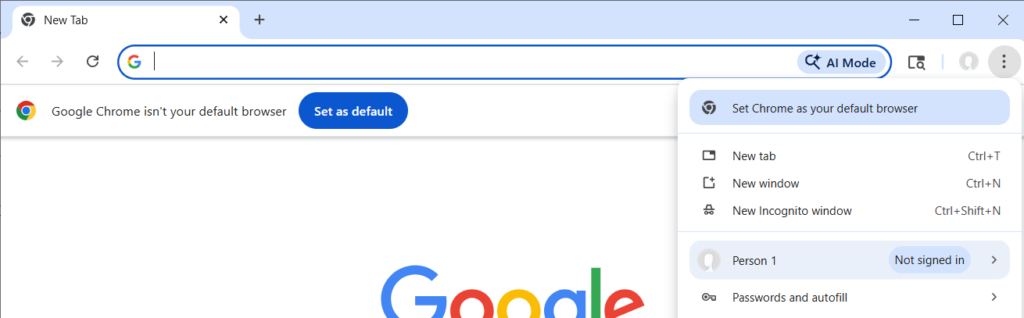
Step 1: Open Chrome Settings
Start by opening Google Chrome on your computer. In the top-right corner, you’ll see three vertical dots (called the “menu” button). Click on it.
From the dropdown menu that appears, look for and click on “Settings.” This will open a new tab with all of Chrome’s options.
Step 2: Navigate to the Password Manager
On the left side of the Settings page, you’ll see several options. Click on “Autofill and passwords” (it might also say “Passwords” depending on your Chrome version).
This section is where Chrome keeps all your password-related tools organized in one place.
Step 3: Find “Google Password Manager”
Under “Autofill and passwords,” you should see an option that says “Google Password Manager” or simply “Passwords.” Click on this option.
A new window will open showing you all the websites where you’ve saved passwords in Chrome.
Step 4: View a Specific Password
Now you’re looking at your password list. You’ll see a list of websites with usernames displayed next to them. To see the actual password for any of these accounts:
- Click on the website you want to view the password for
- A details panel will open on the right side
- Click the eye icon next to the password field to reveal it
- Chrome may ask you to verify your computer password or use your fingerprint (this is a security feature)
- Your password will now be visible
Important Security Tips When Managing Your Passwords
Don’t share your passwords with others, even if they seem trustworthy. If you need to give someone access to an account, it’s better to change the password temporarily and then change it back afterward.
Make sure you’re using a strong password. A strong password typically includes uppercase letters, lowercase letters, numbers, and special characters (like !@#$). Chrome actually has a built-in password strength checker, when you’re creating a new password on a website, Chrome will tell you if it’s weak, fair, or strong.
Enable two-factor authentication on important accounts like your email or banking. This adds an extra layer of security beyond just your password. Even if someone gets your password, they won’t be able to access your account without that second verification step.
Alternatives to Chrome’s Built-In Password Manager

While Chrome’s password manager is convenient, some people prefer dedicated password management apps. Here’s how they compare:
| Feature | Chrome Password Manager | Dedicated Apps (like 1Password, LastPass, Bitwarden) |
|---|---|---|
| Cost | Free | Free or paid ($2.99–$4.99/month typically) |
| Security | Good; passwords encrypted and stored in your Google account | Excellent; often with additional security features |
| Works across browsers | Chrome only | Works on Chrome, Firefox, Safari, Edge, and more |
| Syncs across devices | Yes, if logged into Google account | Yes, with cloud sync |
| Master password | Optional | Required (single password to access all) |
| Offline access | Limited | Better offline functionality |
| Family sharing | Not built-in | Many offer family plans |
If you primarily use Chrome and want something simple and free, Chrome’s password manager is perfectly adequate. But if you use multiple browsers, share passwords with family members or want extra security features, a dedicated password manager might be worth exploring.
How to Export Your Chrome Passwords (If You Want to Switch)
If you decide to move to a different password manager, export your passwords and use your new tools import function to add them.
- Go to Settings > Autofill and passwords > Google Password Manager
- Click the three-dot menu in the top-right corner
- Select “Export passwords”
- Chrome will ask you to confirm your computer password
- Your passwords will download as a CSV file (You can open and check in Excel)
- You can then import this file into whichever password manager you choose
Troubleshooting Common Issues
“Chrome isn’t showing all my saved passwords”
This usually means you’re logged into multiple Google accounts. Make sure you’re signed into the Google account where you saved those passwords. You can check which account you’re logged into in the top-right corner of Chrome.
“I’m not being asked to save passwords anymore”
You may have accidentally turned off password saving. Go to Settings > Autofill and passwords > Google Password Manager > Offer to save passwords and make sure it’s toggled ON.
“A saved password isn’t working”
Sometimes websites update their login requirements or you may have changed a password elsewhere. Try resetting the password directly on the website rather than relying on Chrome’s saved version